This is one of my favorite tweaks as it makes a huge difference to how
fast your machine will 'feel'. What this tweak does is remove the slight
delay between clicking on a menu and XP displaying the menu.
Go to Start then Run
Type 'Regedit' then click 'Ok'
Find "HKEY_CURRENT_USER\Control Panel\Desktop\"
Select "MenuShowDelay"
Right click and select "Modify'
Reduce the number to around "100"
This is the delay time before a menu is opened. You can set it to "0" but
it can make windows really hard to use as menus will open if you just look
at them - well move your mouse over them anyway. I tend to go for anywhere
between 50-150 depending on my mood.

Monday, July 16, 2012

Sunday, June 3, 2012
Find the fastest DNS Server for Your Computer
Thomas Stromberg, a Google engineer based in Belgium,
created Namebench, a piece of software to find the fastest DNS server
available for you to use. The program is available for OS X, Windows,
and Linux, and the entire thing has been open sourced by Stromberg.
Once you install it, Namebench couldn’t be easier to use. You simply load it up, hit the “Start Benchmark” button and let it do its thing. Depending on the number of test you run (you can set that), it will come back with the results in a few minutes. The results open in your web browser, showing you the first, second, and third best DNS options right up top. There are also a number of charts and and graphs if you want to drill down into the numbers.
Now, you might worry that since Namebench was created by a Googler, it would promote Google Public DNS above all others. But actually, in the test I just ran, Google’s solution ranged from the middle of all the DNS offerings to the slowest. OpenDNS, considered Google Public DNS’ biggest competitor, was actually the fastest.
“Are you a power-user with 5 minutes to spare? Do you want a faster internet experience?,” is the way Stromberg pitches it on the site for project. If that applies to you, you should check it out. Strombergwrote more about the idea a few months ago before Google Public DNS was a reality.
After you download and fire up namebench, just click the Start Benchmark button to test out a handful of free public DNS services, from Google Public DNS to OpenDNS toUltraDNS. Once started, the test took about 12 minutes to complete using the default settings. When it’s done, you’ll be presented with a handful of handy charts displaying the results of the tests.
Click to Dwonload


Once you install it, Namebench couldn’t be easier to use. You simply load it up, hit the “Start Benchmark” button and let it do its thing. Depending on the number of test you run (you can set that), it will come back with the results in a few minutes. The results open in your web browser, showing you the first, second, and third best DNS options right up top. There are also a number of charts and and graphs if you want to drill down into the numbers.
Now, you might worry that since Namebench was created by a Googler, it would promote Google Public DNS above all others. But actually, in the test I just ran, Google’s solution ranged from the middle of all the DNS offerings to the slowest. OpenDNS, considered Google Public DNS’ biggest competitor, was actually the fastest.
“Are you a power-user with 5 minutes to spare? Do you want a faster internet experience?,” is the way Stromberg pitches it on the site for project. If that applies to you, you should check it out. Strombergwrote more about the idea a few months ago before Google Public DNS was a reality.
After you download and fire up namebench, just click the Start Benchmark button to test out a handful of free public DNS services, from Google Public DNS to OpenDNS toUltraDNS. Once started, the test took about 12 minutes to complete using the default settings. When it’s done, you’ll be presented with a handful of handy charts displaying the results of the tests.
Click to Dwonload


Friday, April 27, 2012
Repair your Windows XP without using Bootable CD/USB
Many Times the registry entries or files of our system got corrupted because of viruses or other reasons in this case for repairing windows XP we format our system or repair windows XP by some other ways like by using Bootable Method. But this method we can repair our Windos XP without using Bootable CD or USB or formatting system.
This method is called Web Folders XP Repairing System.
For Applying this method just folow below given simple steps:
Step 1 - Frist Click on Start and go to Run.
Step 2 - In Run type webfldrs.msi
 Step 3 - New windows will open in your screen now Click on Select Reinstall Mode
 Step 4 - Again New Window will open in your screen just check marks on all the options and click on OK
 Step 5 - It will take some time in repairing your windows XP and when the process will be completed it will ask to Restart your System then just restart your system.
By using this simple method tour windows XP will be repaired withot using any bootable CD or Formatting..
This method is called Web Folders XP Repairing System.
For Applying this method just folow below given simple steps:
Step 1 - Frist Click on Start and go to Run.
Step 2 - In Run type webfldrs.msi


By using this simple method tour windows XP will be repaired withot using any bootable CD or Formatting..
Saturday, April 21, 2012
How to Use the Fn Key on Your Laptop
How to Use the Fn Key on Your Laptop
To make up for a lack of keys, early laptops came with a special function key, the Fn key. This was used in combination with other keys like a Shift key, giving those keys multiple purposes.On the old Compaq SLT the Fn (function) key is located in the lower-left corner, enclosed in a rectangle. Other keys with rectangles are activated when they're pressed with the Fn key. So the arrow keys (in the lower-right corner) double as other cursor-movement keys. Notice how the embedded numeric keypad also becomes an embedded cursor-movement pad as well.

Most modern laptops retain the Fn key, but it's used primarily to activate special laptop functions. These functions share other keys on the keyboard, typically the Function keys. They're marked by special icons and are color coded to match the Fn key.
Sadly, there’s no standard for naming these Fn keys and their functions. But, among the many laptops out there, you find Fn key combinations that do the following:
- Turn the laptop's internal speaker volume up and down
- Mute the laptop's internal speaker
- Increase or decrease the monitor's brightness or contrast
- Activate an external monitor for giving a presentation
- Activate Stand By mode
- Hibernate the laptop
- Eject a CD/DVD
- Lock the keyboard
Friday, March 16, 2012
Router Limited Or No Connectivity
When attempting to set up or make network connections on a Windows
computer, you may encounter a Limited Or No Connectivity error message
similar to the following:
Limited or no connectivity: The connection has limited or no connectivity. You might be unable to access the Internet or some network resources.
This message can result from any of several different technical glitches or configuration problems. Follow these steps to resolve Limited Or No Connectivity errors in Windows.
Here's How:
1. Determine whether your network access is functioning properly (that you can reach local network resources and the Internet). If you are using a broadband Internet and Windows XP Service Pack 2, this message is often a false error report. See Microsoft Knowledge Base article 892896 for details on how to work around this error appropriately.
If your network access is non-functional. continue to the following steps.
2. If your computer connects to the network through a broadband router , resetting (powering off and on) the router may resolve the issue. If not using a broadband router, or if resetting your router only temporarily resolves the issue and the error message re-appears later, continue to the following steps.
3. If connecting to your network using Wi-Fi and using wireless security, your WEP or other security key may not be set properly. Check the wireless security configuration on your computer's network adapter and update if it necessary.
4. If connecting to your network using an Ethernet cable, your cable may have failed. Temporarily replace your network cable with a new one to determine whether this resolves the issue.
5. If using a broadband router and DHCP on your network, check your computer's IP address to verify it is valid and not a private address that starts with 169.254. An invalid address of the form 169.254.x.x signifies your computer's inability to obtain a usable IP address from your router.
To resolve DHCP configuration problems, proceed to the following steps.
6. Reboot your computer, router (if present) and broadband modem together, then re-test your connection.
7. If your connection remains non-functional, run the Windows Network Repair utility on your computer.
8. If your connection remains non-functional, update your router settings to change from dynamic to static IP address configuration, and set an IP address on the computer appropriately.
9. If your connection remains non-functional, unplug your router and connect the computer directly to your broadband modem. If this configuration is functional, contact the manufacturer of your router for additional support.
10. If your computer is connecting to your network directly through a broadband modem, or if your Internet access remains non-functional after following the instructions above, contact your Internet provider for support.
Limited or no connectivity: The connection has limited or no connectivity. You might be unable to access the Internet or some network resources.
This message can result from any of several different technical glitches or configuration problems. Follow these steps to resolve Limited Or No Connectivity errors in Windows.
Here's How:
1. Determine whether your network access is functioning properly (that you can reach local network resources and the Internet). If you are using a broadband Internet and Windows XP Service Pack 2, this message is often a false error report. See Microsoft Knowledge Base article 892896 for details on how to work around this error appropriately.
If your network access is non-functional. continue to the following steps.
2. If your computer connects to the network through a broadband router , resetting (powering off and on) the router may resolve the issue. If not using a broadband router, or if resetting your router only temporarily resolves the issue and the error message re-appears later, continue to the following steps.
3. If connecting to your network using Wi-Fi and using wireless security, your WEP or other security key may not be set properly. Check the wireless security configuration on your computer's network adapter and update if it necessary.
4. If connecting to your network using an Ethernet cable, your cable may have failed. Temporarily replace your network cable with a new one to determine whether this resolves the issue.
5. If using a broadband router and DHCP on your network, check your computer's IP address to verify it is valid and not a private address that starts with 169.254. An invalid address of the form 169.254.x.x signifies your computer's inability to obtain a usable IP address from your router.
To resolve DHCP configuration problems, proceed to the following steps.
6. Reboot your computer, router (if present) and broadband modem together, then re-test your connection.
7. If your connection remains non-functional, run the Windows Network Repair utility on your computer.
8. If your connection remains non-functional, update your router settings to change from dynamic to static IP address configuration, and set an IP address on the computer appropriately.
9. If your connection remains non-functional, unplug your router and connect the computer directly to your broadband modem. If this configuration is functional, contact the manufacturer of your router for additional support.
10. If your computer is connecting to your network directly through a broadband modem, or if your Internet access remains non-functional after following the instructions above, contact your Internet provider for support.
- if you are on wired netwok check your cable connection,it is possible one leg of the cable is not connected to RJ45 jack or the straight cable your are using is not crimping well. so use network tester to do that.
- put the ip address statically on the computer your are using
- check the speed of your lan card either is compatiable with the speed of the router
- install other browsers if your internet explorer is no working fine
Sunday, March 11, 2012
Speed up Your Slow Hard Drive
Constant accessing, noisy and freezing are all symptoms of a slow hard
drive. A big fast hard drive is a must for any modern PC. The hard drive
acts as the primary storage unit for all your data. And you would like
to retrieve your files and access your programs as fast as possible.
Each new generation of PCs offers bigger hard drives. However an
oversize cluttered drive just is a big slow hard drive. Nevertheless,
you can easily maintain the quality of your hard drive and learn how to
avoid experiencing slow hard drive problems.
STEP 1: Scan Your Hard Drive
One of the major causes of a slow hard drive is errors. Some hard drives errors can be caused by the bumping your PC. This can actually cause physical damage to the hard drive. The damage is known as a bad sector. A very slow hard drive is usually the result of this phenomenon. Bad sector cause your hard drive to constantly try to read inaccessible information. Running Check Disk will help you determine if your hard drives has bad sectors.
1. Click the Windows button and open the Computer folder.
2. Find and Select your hard drive, right click the hard drive icon.
3. Choose Properties from the drop down list.
4. In the Local Disk Properties dialog box, click the Tools tab.
5. Click the Check Now button.
6. For maximum cleanup click "Automatically fix..." and "Scan for ..."
7. If you see new dialog window, click Schedule disk check to start.

Switch FAT to NTFS. You can increase your hard drive speed by switching FAT to NTFS. The NTFS configurations provides increased security, file–by–file compression, quotas, and even encryption. The default setting for XP may be set to FAT which is slower system. However if you have Vista converted to the NTFS16 or NTFS32

 Wait until it finish.
STEP 2: Clean Up Your Hard Drive
Each file on your computer is stored in more than one place. A slow hard drive has useless and abandoned files stored in multiple places on your computer. This is similar to having a very messy room. When you are in a rush and need to find your keys. It will take forever to find them. Same goes for finding files in your hard drive.
1. Click the Windows button and open the Computer folder.
2. Find and Select your hard drive, right click the hard drive icon.
3. Choose Properties from the drop down list.
4. In the Local Disk Properties dialog box, click the Disk Cleanup tab.
5. Choose Files from all users on this computer.
6. Click OK after the check box for all the files you want to delete.


Choosing More Options will give you the chance clean up your slow hard drive from programs and shadow copies. Note that shadow copies are used as system of back up that can save your files once deleted. This makes data recovery easier but causes slow hard drive problems. So, proceed with caution.

The Registry is your hard drives largest filing system. Any errors or corrupted files can cause everything from hard drive problems to sluggish startup and shutdowns. Slow hard drive problems occur because the CPU will constantly access the hard drive for information that has to be immediately delivered. If the registry is fragmented and unorganized your CPU will stall and your hard drive constantly cycles through your registry system.
STEP 3: Defragment Your Hard Drives
1. Open the Start Menu
2. Click on Computer
3. Right Click your hard drive icon.
4. Scroll down to the Properties.
5. In the Properties Menus, Open the Tools menu.
6. Choose Defragment Now.
7. In the Disk Deframenter menu. Click on Defragment


The image displays a hard drive with a large amount of fragmented data. This is demonstrated by the collection of broken bars. Each color indicates different data fields, files, and blocks of data. In "healthy" computer, one with little fragmentation, the disk defragmenter would display a collection of large continuous blocks consisting of one color.

The result of the defragmentation process demonstrates a collection of large contiguous colors fields. This is an indication that large amounts of similar data have been group in specific locations on the hard drives thus making the data easily accessible and eliminating one of the major causes of fragmented hard drive syndrome.
STEP 1: Scan Your Hard Drive
One of the major causes of a slow hard drive is errors. Some hard drives errors can be caused by the bumping your PC. This can actually cause physical damage to the hard drive. The damage is known as a bad sector. A very slow hard drive is usually the result of this phenomenon. Bad sector cause your hard drive to constantly try to read inaccessible information. Running Check Disk will help you determine if your hard drives has bad sectors.
1. Click the Windows button and open the Computer folder.
2. Find and Select your hard drive, right click the hard drive icon.
3. Choose Properties from the drop down list.
4. In the Local Disk Properties dialog box, click the Tools tab.
5. Click the Check Now button.
6. For maximum cleanup click "Automatically fix..." and "Scan for ..."
7. If you see new dialog window, click Schedule disk check to start.

Switch FAT to NTFS. You can increase your hard drive speed by switching FAT to NTFS. The NTFS configurations provides increased security, file–by–file compression, quotas, and even encryption. The default setting for XP may be set to FAT which is slower system. However if you have Vista converted to the NTFS16 or NTFS32

STEP 2: Clean Up Your Hard Drive
Each file on your computer is stored in more than one place. A slow hard drive has useless and abandoned files stored in multiple places on your computer. This is similar to having a very messy room. When you are in a rush and need to find your keys. It will take forever to find them. Same goes for finding files in your hard drive.
1. Click the Windows button and open the Computer folder.
2. Find and Select your hard drive, right click the hard drive icon.
3. Choose Properties from the drop down list.
4. In the Local Disk Properties dialog box, click the Disk Cleanup tab.
5. Choose Files from all users on this computer.
6. Click OK after the check box for all the files you want to delete.


Choosing More Options will give you the chance clean up your slow hard drive from programs and shadow copies. Note that shadow copies are used as system of back up that can save your files once deleted. This makes data recovery easier but causes slow hard drive problems. So, proceed with caution.

The Registry is your hard drives largest filing system. Any errors or corrupted files can cause everything from hard drive problems to sluggish startup and shutdowns. Slow hard drive problems occur because the CPU will constantly access the hard drive for information that has to be immediately delivered. If the registry is fragmented and unorganized your CPU will stall and your hard drive constantly cycles through your registry system.
STEP 3: Defragment Your Hard Drives
1. Open the Start Menu
2. Click on Computer
3. Right Click your hard drive icon.
4. Scroll down to the Properties.
5. In the Properties Menus, Open the Tools menu.
6. Choose Defragment Now.
7. In the Disk Deframenter menu. Click on Defragment

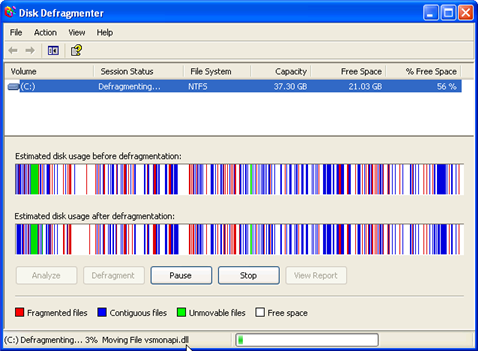
The image displays a hard drive with a large amount of fragmented data. This is demonstrated by the collection of broken bars. Each color indicates different data fields, files, and blocks of data. In "healthy" computer, one with little fragmentation, the disk defragmenter would display a collection of large continuous blocks consisting of one color.

The result of the defragmentation process demonstrates a collection of large contiguous colors fields. This is an indication that large amounts of similar data have been group in specific locations on the hard drives thus making the data easily accessible and eliminating one of the major causes of fragmented hard drive syndrome.
Learn to Increase your Slow Internet Connection
Broadband internet connections have given access to instant information.
However, slow internet connection problems are becoming more common.
The speed of your internet connection is based on a number of factors.
If any of these factors are hampered the overall connection speed will
slow. Some causes of slow internet connection are beyond your control.
However the majority of the problems that cause slow down can be easily
eliminated with a few maintenance task. Some of the factors directly
affected your internet net connection are modem speed, line quality,
windows cache, security software and the quality of your internet
service provider.
Check your internet speed
You can check your internet connection by hover your mouse pointer over the internet connection icon in the bottom right hand corner of your screen. A pop up window will display your internet connection. You can also click the icon to launch the Properties window.

The graphic shows a connection that is using a wireless router so in addition to your internet speed, log on duration and status, you will also see the signal strength. You can get more accurate test by using online broad band test sites. If you are getting 80% of your ISP advertised speed, You are in good shape. There is usually a standard loss of 10-20% speed due to line quality. So if your are supposed be getting 1.5mbs and your internet speed runs around 1.25mbs, you have a good connection.
4 Steps to Increase A Slow Internet Connection
STEP 1: REDUCE THE WEB CACHE
First step in speeding up your slow internet connection to tweak your internet options. To launch the internet options utility follow the the direction below:
1.Click Start
2. Click Control Panel
3. Double Click Internet Options
4. Click Settings under Browsing History

The task here is to make your web cache as small as possible. The less disk space your reserve for your temporary files is less data that your computer needs to search through. This action can easily award you a faster connection on the net.
5. Reduce the Disk Space to Use to the minimum recommended amount or as low as your desire.

STEP 2: CLEAR TEMP FILES
Deleting your web cache is a good way to speed up a slow internet connection. These files take up valuable resources that could be used to for a better net surfing experience. Remember that while you are online many files in the web cache are active. Cookies are loaded in your browsers and constantly update themselves. Also your computer will search through the temp files to match the latest version of a web page. So, by clearing the web cache you cut down on the work your PC needs to do thus speeding up your slow internet connection. Remember to shutdown the browser when deleting the cache. Because what files are open will not be deleted. Here how to delete your temporary internet files.
Manual steps to erase your temporary internet files.
1. Quit Internet Explorer, Firefox, or any other web browser
2. Click Start, click Control Panel, and then double-click Internet Options.
3. On the General tab, click Delete Files under Temporary Internet Files.
4. In the Delete Files dialog box, click to select the Delete all offline content check box , and then click OK.
5. Click OK.
If you prefer not to delete all the files you can selective search each category and delete. The temporary files are broken up into six categories. To view your internet files follow the steps below:
In Internet Explorer
1. Open Internet Explorer.
2. Choose Internet Options from the Tools menu.
3. Click the General, Under Temporary Internet Files, Click Settings.
4.Click View Files
5. Delete selected files
The goal here is to cut down on the files your computer needs to search through. Alternate methods can be used to clear the web cache and other unnecessary data.

STEP 3: SPEED UP WEB PAGES
One of the biggest culprit of slow internet connections. Is your web browser's settings. When you log on to a web page, your computer is assaulted with data it needs to organize and present in an orderly manner. This information takes time to load. So, the more information the longer it takes to load. However you tweak a number of settings to decrease the time it takes to load a web page. By reducing the amount of animation and scripts. You can see drastic increases in your internet surfing.
1.Click Start
2. Click Control Panel
3. Double Click Internet Options
4. Click Settings
5. Scroll down to Multimedia.
6. You can reduce the options in order to increase speed at which web pages are loaded.

By restricting your browser to display only text is the fastest option.
STEP 4: CONTROL YOUR ANTIVIRUS
A slow internet connection is often a software related problem and not the fault of your ISP. Buying more bandwidth is always going to help. Slow down is a normal result of having security software like an anitvirus on your computer. The software must constantly update it files and signatures. All this information is logged in your computer. The majority of the information is placed in your registry.
When your antivirus performs a scan. It produces a log. This log can be up to 100 megabytes of information each. The registry holds all this info. The addition of the info is not the major problem. Its that the information is placed in many places in your registry. This causes fragmentation of files. Your computer's operating system must search through the massive files in the registry constantly. If the registry is error-filled, fragmented, or bloated with unnecessary and duplicate files, you will have major slowdown. Organize and keep it maintained, the problem will most likely be solved. You can scan to see the condition of your registry and see what resources you can unlock resources.
Also you should try to see what processes are loaded when your computer starts. Often the antivirus will check your email, scan, and even update at the same time. This may be occurring everytime you start up your PC. These acts can last as long as 3 hours. They may be running silently in the background without your knowledge. Maintain them by following the directions below or by tweaking the settings in your antivirus:
1. Open your Start menu.
2. Click Run
3. In the command screen type msconfig.exe
4. In the system configuration utility,click either service or startup
tab5. Uncheck all programs that you dont want to load win the antivirus is starting
6. Click OK.
Check your internet speed
You can check your internet connection by hover your mouse pointer over the internet connection icon in the bottom right hand corner of your screen. A pop up window will display your internet connection. You can also click the icon to launch the Properties window.

The graphic shows a connection that is using a wireless router so in addition to your internet speed, log on duration and status, you will also see the signal strength. You can get more accurate test by using online broad band test sites. If you are getting 80% of your ISP advertised speed, You are in good shape. There is usually a standard loss of 10-20% speed due to line quality. So if your are supposed be getting 1.5mbs and your internet speed runs around 1.25mbs, you have a good connection.
4 Steps to Increase A Slow Internet Connection
STEP 1: REDUCE THE WEB CACHE
First step in speeding up your slow internet connection to tweak your internet options. To launch the internet options utility follow the the direction below:
1.Click Start
2. Click Control Panel
3. Double Click Internet Options
4. Click Settings under Browsing History

The task here is to make your web cache as small as possible. The less disk space your reserve for your temporary files is less data that your computer needs to search through. This action can easily award you a faster connection on the net.
5. Reduce the Disk Space to Use to the minimum recommended amount or as low as your desire.

STEP 2: CLEAR TEMP FILES
Deleting your web cache is a good way to speed up a slow internet connection. These files take up valuable resources that could be used to for a better net surfing experience. Remember that while you are online many files in the web cache are active. Cookies are loaded in your browsers and constantly update themselves. Also your computer will search through the temp files to match the latest version of a web page. So, by clearing the web cache you cut down on the work your PC needs to do thus speeding up your slow internet connection. Remember to shutdown the browser when deleting the cache. Because what files are open will not be deleted. Here how to delete your temporary internet files.
Manual steps to erase your temporary internet files.
1. Quit Internet Explorer, Firefox, or any other web browser
2. Click Start, click Control Panel, and then double-click Internet Options.
3. On the General tab, click Delete Files under Temporary Internet Files.
4. In the Delete Files dialog box, click to select the Delete all offline content check box , and then click OK.
5. Click OK.
If you prefer not to delete all the files you can selective search each category and delete. The temporary files are broken up into six categories. To view your internet files follow the steps below:
In Internet Explorer
1. Open Internet Explorer.
2. Choose Internet Options from the Tools menu.
3. Click the General, Under Temporary Internet Files, Click Settings.
4.Click View Files
5. Delete selected files
The goal here is to cut down on the files your computer needs to search through. Alternate methods can be used to clear the web cache and other unnecessary data.

STEP 3: SPEED UP WEB PAGES
One of the biggest culprit of slow internet connections. Is your web browser's settings. When you log on to a web page, your computer is assaulted with data it needs to organize and present in an orderly manner. This information takes time to load. So, the more information the longer it takes to load. However you tweak a number of settings to decrease the time it takes to load a web page. By reducing the amount of animation and scripts. You can see drastic increases in your internet surfing.
1.Click Start
2. Click Control Panel
3. Double Click Internet Options
4. Click Settings
5. Scroll down to Multimedia.
6. You can reduce the options in order to increase speed at which web pages are loaded.

By restricting your browser to display only text is the fastest option.
STEP 4: CONTROL YOUR ANTIVIRUS
A slow internet connection is often a software related problem and not the fault of your ISP. Buying more bandwidth is always going to help. Slow down is a normal result of having security software like an anitvirus on your computer. The software must constantly update it files and signatures. All this information is logged in your computer. The majority of the information is placed in your registry.
When your antivirus performs a scan. It produces a log. This log can be up to 100 megabytes of information each. The registry holds all this info. The addition of the info is not the major problem. Its that the information is placed in many places in your registry. This causes fragmentation of files. Your computer's operating system must search through the massive files in the registry constantly. If the registry is error-filled, fragmented, or bloated with unnecessary and duplicate files, you will have major slowdown. Organize and keep it maintained, the problem will most likely be solved. You can scan to see the condition of your registry and see what resources you can unlock resources.
Also you should try to see what processes are loaded when your computer starts. Often the antivirus will check your email, scan, and even update at the same time. This may be occurring everytime you start up your PC. These acts can last as long as 3 hours. They may be running silently in the background without your knowledge. Maintain them by following the directions below or by tweaking the settings in your antivirus:
1. Open your Start menu.
2. Click Run
3. In the command screen type msconfig.exe
4. In the system configuration utility,click either service or startup
tab5. Uncheck all programs that you dont want to load win the antivirus is starting
6. Click OK.
Subscribe to:
Posts (Atom)